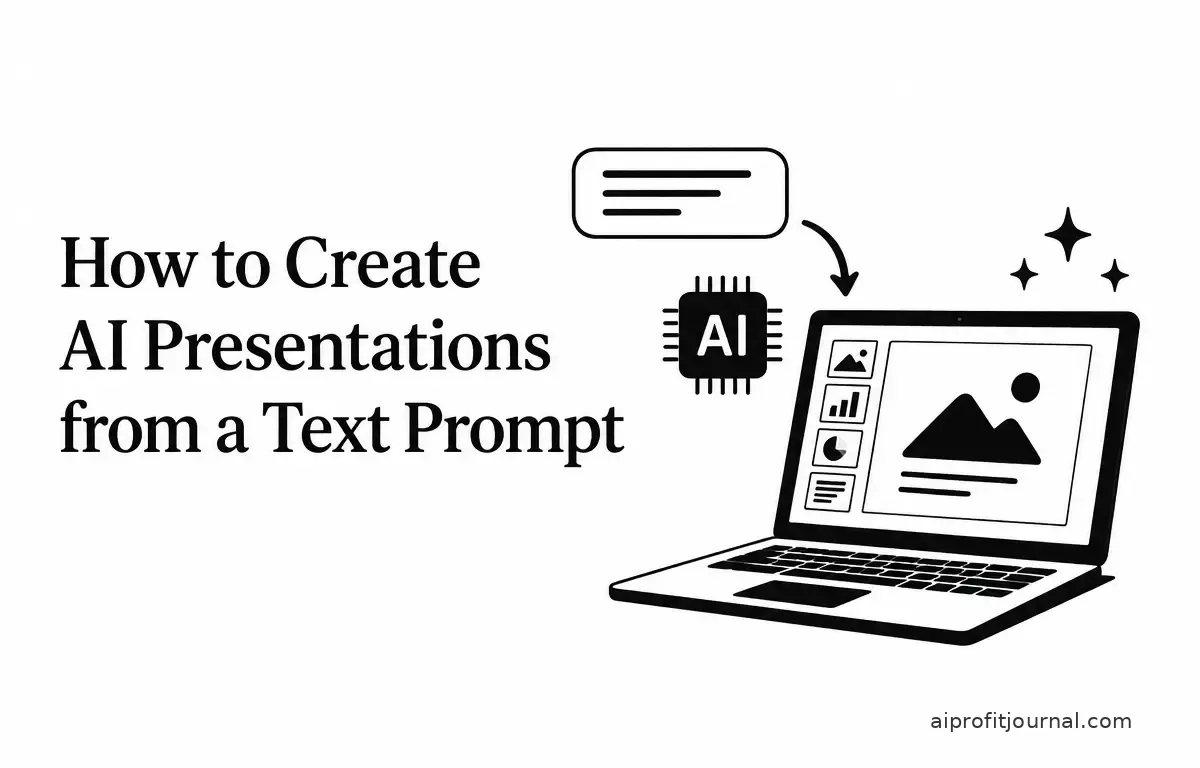
Creating presentations can be a time-consuming task, especially when starting from scratch. With advancements in artificial intelligence (AI), it’s now possible to generate professional presentations directly from text prompts, streamlining the process and enhancing productivity. In this guide, we’ll explore how to create AI presentations from text prompts using leading AI-powered tools.
Understanding AI-Powered Presentation Tools
AI-powered presentation tools leverage machine learning algorithms to transform textual input into structured, visually appealing slides. These tools analyze your prompt, organize the content logically, and apply design principles to produce a cohesive presentation. By utilizing natural language processing, they understand the context and intent behind your input, allowing for more nuanced outputs.
The adaptability of these tools makes them suitable for a range of presentations, whether for corporate settings, educational purposes, or creative projects. They allow you to focus more on content rather than format, ensuring you can effectively convey your message without getting bogged down in the details of design.
Top AI Presentation Tools in 2026
Several AI presentation tools have emerged, each offering unique features to cater to different user needs. Here are some of the top tools available:
1. Gamma
Gamma is renowned for its speed and efficiency in generating presentations. By inputting a prompt, Gamma quickly produces a polished slide deck, making it ideal for users seeking rapid results. This tool excels in generating outlines and key points quickly. (toolcenter.ai)
2. Tome
Tome specializes in creating narrative-driven presentations. It organizes content into a compelling story, perfect for pitches and storytelling sessions. This tool is particularly valuable for professionals who want to engage their audience emotionally and intellectually. (toolcenter.ai)
3. SlidesAI
SlidesAI integrates seamlessly with platforms like Google Slides and PowerPoint, enabling users to generate presentations directly within their preferred environments. This versatility makes it a choice for teams already accustomed to these tools. (slidesai.io)
Step-by-Step Guide to Creating AI Presentations from Text Prompts
Follow these steps to create an AI-powered presentation from a text prompt:
1. Choose the Right AI Presentation Tool
Select a tool that aligns with your presentation style and integrates well with your existing workflow. Consider factors like:
- Design Capabilities: Does the tool offer customizable templates and design options?
- Ease of Use: Is the interface user-friendly? Can you easily navigate the features?
- Compatibility: Will it work well with your preferred presentation software or platforms?
Consider the learning curve associated with each tool, especially if you have a deadline approaching. A tool that is slightly less feature-rich but easier to use may be preferable in time-sensitive situations.
2. Input Your Text Prompt
Provide a clear and concise prompt that outlines the topic, target audience, and key points you wish to cover. The quality of the generated presentation heavily depends on the clarity and specificity of your input. For instance, instead of simply saying “AI in healthcare,” clarify with, “Discuss the impact of AI on patient diagnosis and treatment in a hospital setting.” This specificity helps the AI produce more targeted content.
To further refine your prompt, you can include specific questions you want the presentation to address, such as, “What are the top three ways AI improves patient diagnostics?” This structured input leads to more actionable insights.
3. Review and Edit the Generated Slides
After the AI generates the slides, review them for accuracy, coherence, and design consistency. Take the time to:
- Fact-Check: Confirm that the information presented is current and correct.
- Ensure Coherence: Make sure each slide flows logically into the next, supporting your overall narrative.
- Design Consistency: Check that fonts, colors, and layouts are uniform across all slides.
Pay special attention to slide transitions and visual hierarchies, as these factors can significantly impact audience engagement. Simple animation transitions can help guide the viewer’s focus without being distracting.
4. Customize and Enhance
Add personal touches to tailor the presentation to your specific needs. Consider:
- Branding Elements: Include your logo, company colors, and fonts to maintain brand identity.
- Custom Visuals: Substitute stock images with your own graphics or infographics for a more authentic presentation.
- Speaker Notes: Add notes that can help guide your delivery and provide additional context to your audience.
Customization not only enhances the aesthetics of your presentation but also ensures that it aligns closely with your brand narrative and message, providing a seamless experience for your audience.
5. Export and Share
Once satisfied with the final version, export the presentation in your desired format (e.g., PowerPoint, PDF) and share it with your audience. Ensure that the exported file maintains the design integrity and is accessible to your viewers, possibly through cloud-sharing tools.
Consider creating versions in multiple formats based on your audience’s preferences. For instance, a PDF version is often more suitable for email sharing, while a PowerPoint version may be ideal for live presentations.
Practical Example: Creating a Presentation on “The Impact of AI on Modern Education”
Let’s walk through the process of creating a presentation on “The Impact of AI on Modern Education” using Gamma:
- Input Prompt: “Create a presentation on ‘The Impact of AI on Modern Education’ targeting educators and policymakers, highlighting benefits, challenges, and future trends.”
- Review Generated Slides: Gamma produces a slide deck outlining the benefits, challenges, and future trends of AI in the educational sector.
- Edit Content: Enhance the presentation by incorporating specific examples of AI tools currently used in classrooms or case studies demonstrating their effectiveness.
- Customize Design: Apply your institution’s branding, ensuring that images and color schemes resonate with your audience.
- Export and Share: Export the presentation as a PowerPoint file and share it with stakeholders through email or cloud storage.
In this scenario, ensuring the accuracy of case studies and statistics adds credibility to the presentation, which is particularly important when addressing policymakers.
Limitations and Considerations
While AI presentation tools offer numerous advantages, it’s essential to be aware of their limitations:
- Accuracy: AI-generated content may occasionally include inaccuracies or outdated information. Always verify facts before presenting, particularly on data-sensitive topics.
- Design Constraints: Some tools may have limited design flexibility, potentially restricting customization options that are critical for brand coherence.
- Data Privacy: Ensure that the tool complies with data protection regulations, especially when handling sensitive or proprietary information.
- Cost: While many tools offer free versions, advanced features often require paid subscriptions. Carefully evaluate the pricing structure to ensure it aligns with your budget and usage needs.
It’s wise to consider trial offerings before committing financially to a specific tool, especially if you’re part of a team that may rely on these resources frequently.
Conclusion
AI-powered presentation tools have revolutionized how we create and deliver presentations. By understanding their capabilities and limitations, you can effectively harness these tools to produce compelling presentations from text prompts. With the right approach to input and customization, AI can significantly reduce the time and effort involved in the presentation-making process while enhancing quality and engagement.
Frequently Asked Questions (FAQs)
1. Are AI presentation tools suitable for all types of presentations?
AI tools are versatile and can be used for various presentations, including business pitches, educational lectures, and conference talks. However, for highly specialized or technical topics, human expertise may still be necessary to ensure accuracy and depth.
2. Can I use AI presentation tools for collaborative projects?
Many AI presentation tools offer collaboration features, allowing multiple users to work on a presentation simultaneously. Check the specific tool’s capabilities to ensure it meets your collaboration needs and enables smooth teamwork.
3. Do AI presentation tools support multimedia content?
Yes, most AI presentation tools support the integration of multimedia elements such as images, videos, and charts to enhance the visual appeal of your slides. This allows you to create a rich, engaging experience for your audience.
4. How do I ensure the AI-generated content aligns with my brand identity?
Customize the design elements, such as color schemes, fonts, and logos, within the AI tool to reflect your brand identity. Additionally, review and edit the content to ensure it aligns with your brand’s voice and messaging. This alignment is crucial for maintaining a coherent professional image.