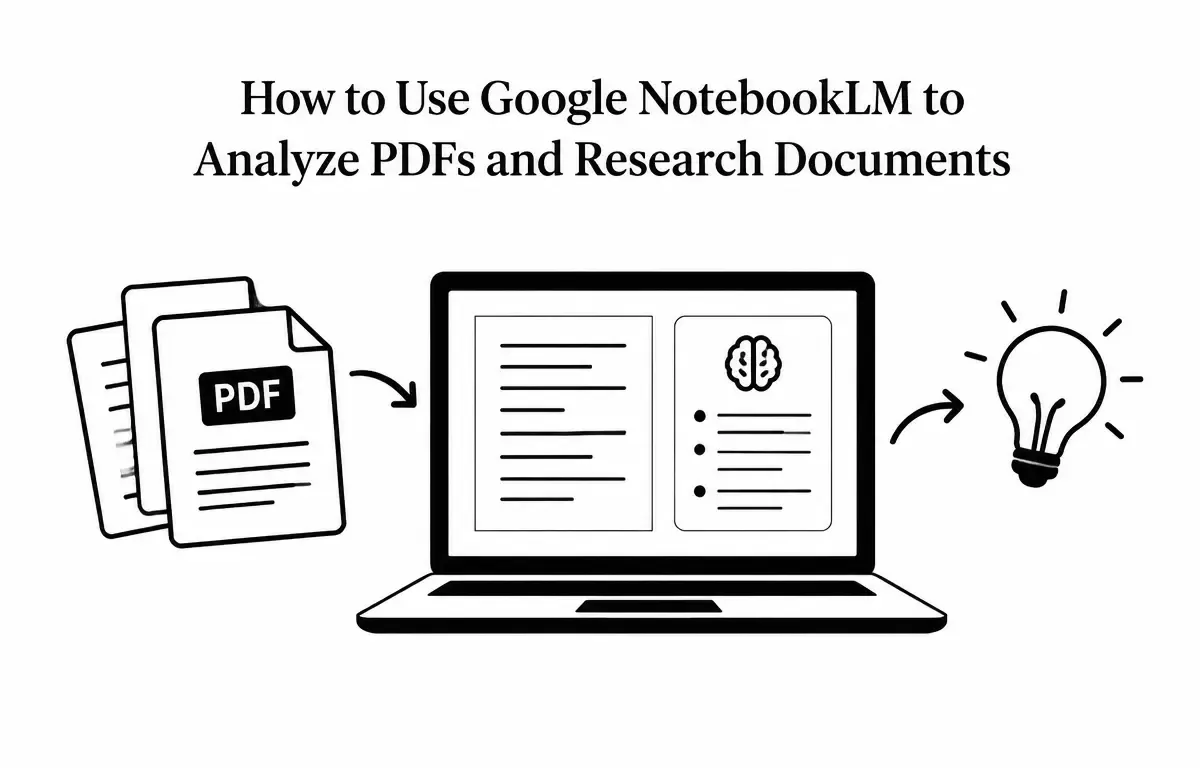
In today’s information-rich environment, efficiently analyzing extensive PDFs and research documents is crucial for researchers, students, and professionals. Google NotebookLM, an AI-powered research assistant, offers a robust solution by allowing users to upload and interact with their documents directly, providing source-grounded answers and insights. This guide explores how to leverage NotebookLM to enhance your document analysis workflow effectively.
Understanding Google NotebookLM
Google NotebookLM is an AI research tool developed by Google that enables users to upload various document types—including PDFs, Google Docs, and web pages—and receive AI-generated summaries, answers, and insights grounded in the uploaded content. Unlike general-purpose AI models, NotebookLM focuses solely on the materials you provide, ensuring that responses are directly tied to your sources, thereby reducing inaccuracies and enhancing reliability. This commitment to source-grounded responses is what sets NotebookLM apart from other AI tools.
Getting Started with NotebookLM
To begin using NotebookLM for analyzing PDFs and research documents, follow these steps:
- Create an Account: Visit the official NotebookLM website and sign in with your Google account. If you’re new to the platform, you can create an account for free. (notebooklm.link)
- Create a New Notebook: Once logged in, click on “Create a new notebook” to start a new project. This notebook is a central space where your documents will be managed.
- Upload Your Documents: Within your new notebook, upload your PDFs and other research documents. NotebookLM supports a variety of file types, including PDFs, Google Docs, and web pages, facilitating a comprehensive analysis experience.
Analyzing PDFs with NotebookLM
After uploading your PDFs, you can utilize NotebookLM’s features to analyze and extract valuable insights effectively:
1. Source-Grounded Q&A
One of the most powerful features of NotebookLM is its ability to process specific queries related to your documents. Pose questions such as, “What are the most significant findings on renewable energy sources from my uploaded papers?” NotebookLM will harness the content of your PDFs to provide answers, complete with citations from the exact passages. This feature is particularly useful for quickly retrieving information without sifting through long texts, thereby saving you time during your research.
2. Document Summarization
When faced with numerous lengthy PDFs, generating concise summaries of your documents is invaluable. Use this feature to obtain a high-level overview of the key themes, findings, or arguments from your documents without the need to read each one in full. For instance, if you’re researching the effects of climate change, you can ask for a summary that encapsulates the range of responses highlighted in multiple studies.
3. Audio Overviews
Consider the convenience that audio can bring to your learning. NotebookLM allows you to convert your documents into conversational audio summaries. For example, if you’re preparing for a conference or seminar, you can generate an audio version of your research findings to listen to while commuting or exercising, allowing you to maximize your time management.
4. Deep Research
Utilize the Deep Research feature to automate complex online research tasks. By inputting a topic, such as “impact of urbanization on local wildlife,” NotebookLM can browse hundreds of relevant websites, refine its search based on your provided context, and generate a comprehensive, source-grounded report. This is particularly useful for gathering diverse perspectives on a subject and becoming well-informed before writing your own analysis.
5. Visual Data Representation
Data visualization can profoundly impact understanding. NotebookLM offers tools to create visual representations of information drawn from your documents. For instance, after querying the relationship between climate change and coastal erosion, you can generate easy-to-understand charts or graphs. Such visual aids can not only enhance your personal comprehension but also make your presentations more compelling.
Practical Workflow Example
To illustrate how to effectively use NotebookLM for research, consider this scenario where you’re investigating the impact of climate change on coastal ecosystems:
- Upload Relevant Documents: Start by uploading scientific papers, government reports, and articles related to coastal ecosystems and climate change. The more diverse the sources, the richer your analysis will be.
- Ask Specific Questions: Formulate queries such as, “What effects are projected for coastal vegetation in the next 50 years?” NotebookLM will analyze your documents and provide answers with citations for verification.
- Generate a Summary: After collecting the data, request a summary of the key findings from your various sources to obtain an overview of the current research landscape regarding climate change. This will help you identify knowledge gaps and areas for further inquiry.
- Create an Audio Overview: Convert your summary into an audio format that you can listen to while performing other tasks, which can aid in reinforcing your understanding of the material.
- Visualize Key Data: Use NotebookLM’s visualization tools to create charts that depict the major findings and trends in climate impact. This can enhance your final report or presentation.
Limitations and Considerations
While NotebookLM offers powerful tools for document analysis, it’s essential to be aware of certain limitations:
- Data Privacy: Always ensure that the documents you upload do not contain sensitive or confidential information. Be mindful that your documents will be processed on Google’s servers, raising potential privacy concerns.
- Accuracy of AI-Generated Content: While NotebookLM aims for accuracy, it’s advisable to cross-reference critical information with the original documents to confirm its correctness. AI-generated content can sometimes interpret data inaccurately.
- File Compatibility: Be aware that some specialized file formats may not be supported. Always verify that your documents are in a suitable format (such as PDFs or common text files) to ensure seamless integration with NotebookLM.
- Learning Curve: Users may experience a learning curve in fully understanding how to ask questions effectively or utilize all features. Investing some time in practice will enhance proficiency.
Conclusion
Google NotebookLM serves as a valuable tool for analyzing PDFs and research documents, streamlining the process of extracting insights and enhancing productivity. By understanding its features and limitations, you can effectively incorporate NotebookLM into your research workflow, enabling more efficient and informed outcomes. With its AI-powered capabilities, you can navigate the expanding sea of information with greater confidence and ease.
Related Articles
- ChatGPT vs Claude: A Practical Comparison for Writing and Research
- How to Create Consistent Characters with AI Image Generators
- Canva AI vs Adobe Firefly: Which Is Better for Everyday Design?
- How to Write Better AI Image Prompts: Examples and Techniques
FAQs
1. Is NotebookLM free to use?
Yes, NotebookLM offers a free tier with certain usage limits. For higher usage and additional features, a paid subscription is available. (notebooklm.link)
2. What types of documents can I upload to NotebookLM?
NotebookLM supports various file types, including PDFs, Google Docs, Google Slides, and web pages, allowing for a versatile approach to research. (notebooklm.link)
3. How does NotebookLM ensure the accuracy of its responses?
NotebookLM grounds its answers in the documents you upload, providing citations to the exact passages. This methodology reduces inaccuracies and allows users to verify information directly. (notebooklm.link)
4. Can NotebookLM generate audio summaries of my documents?
Yes, NotebookLM can convert your documents into conversational audio summaries, making it convenient to absorb information while on the go. (notebooklm.link)
5. Is there a mobile app for NotebookLM?
As of now, NotebookLM is accessible via web browsers. There is no official mobile app available. (notebooklm.link)